Printing badges
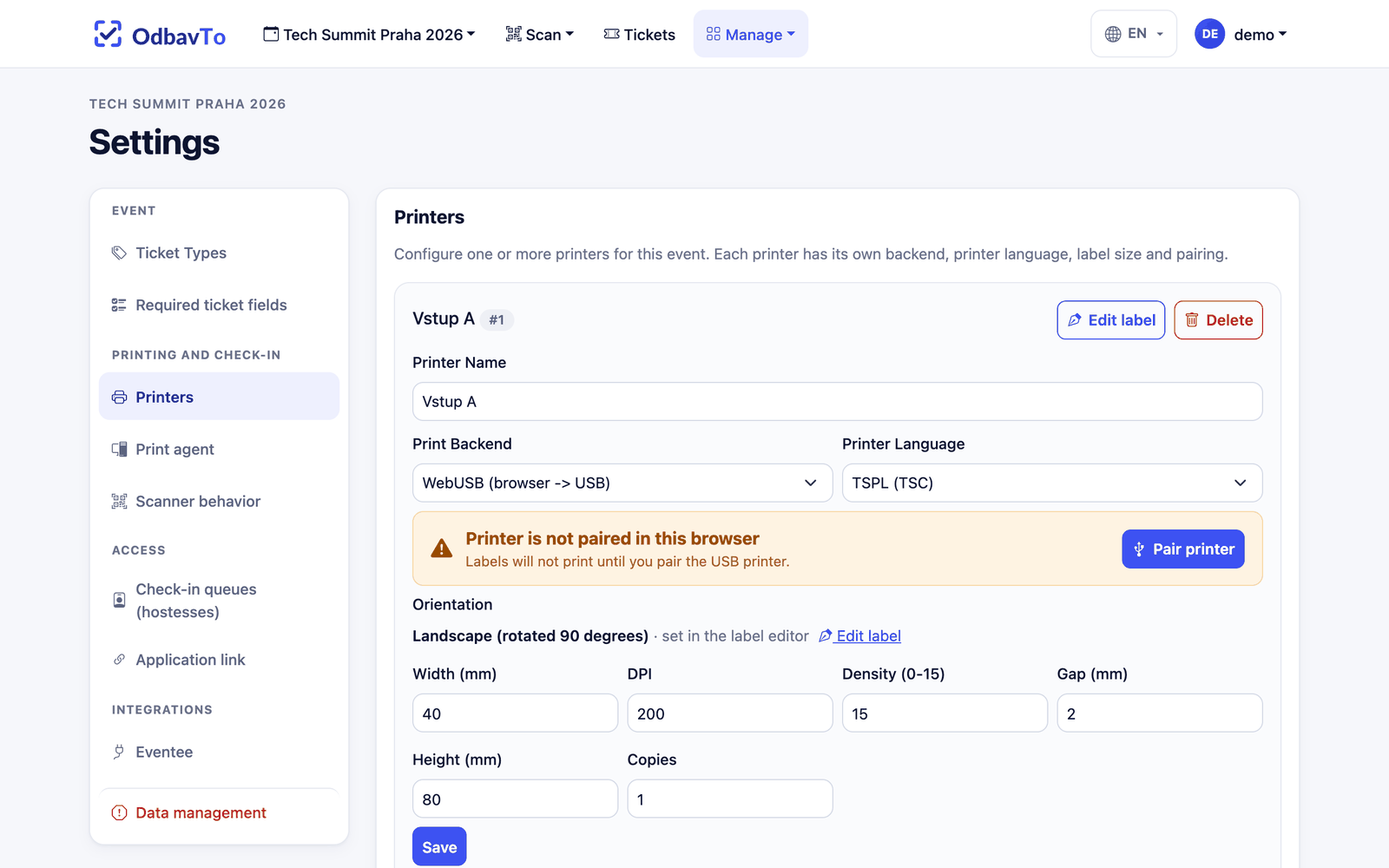
Printers are set up per event in Settings → Printing and check-in → Printers. An event can have any number of printers. Each has its own number (1, 2, 3…), its own scanner and its own label layout.
Adding a printer
Click Add printer and fill in:
| Field | Description |
|---|---|
| Printer Name | How the printer is named in the app (e.g. "Entrance A"). |
| Print Backend | How the data gets to the printer, see below. |
| Printer Language | TSPL for TSC and compatible printers, Brother QL for Brother printers. |
| Label size | Width × height in mm (default 40 × 80 mm), DPI, print density. |
| Gap | Default 2 mm, 0 = continuous roll. |
| Copies | How many labels per check-in (1–10). |
| DK media | Brother only: e.g. DK-22225 (38 mm roll) or DK-11201. |
Print backends
Prints directly from the browser to a printer connected by USB to the computer running the scanner.
- Works in Chrome and Edge on Windows, macOS and Linux.
- Needs no extra software, but requires HTTPS.
- Pair the printer once with Pair printer on the printer card. The browser remembers the pairing.
- On Windows the printer driver must be replaced once with WinUSB (Zadig). The guide is in the app next to the printer and in Printers.
When to use: a laptop at the entrance with a USB printer.
The server sends the data directly to a network printer (port 9100).
- Enter the printer's IP address and port
9100. - The printer must be reachable from the server running OdbavTo (typically a local installation on the same network).
When to use: a network or Wi-Fi printer, e.g. Brother QL-820NWB.
A small program, the print agent, runs on the computer with the printer and fetches jobs from the server.
- Works with the app in the cloud and the printer on a local network behind NAT.
- You can scan on a phone or tablet and print on the PC at the entrance.
- See Print agent.
When to use: scanning on a phone and the printer is at another computer.
Prints directly from the server through the Windows driver. It is hidden by default and enabled by the administrator (ENABLE_DIRECT_PRINTING). Only useful for a local installation on a Windows PC with a USB printer.
Testing the printer
The quickest test is to print a special label with a test name. It uses the same path as a check-in.
Special labels
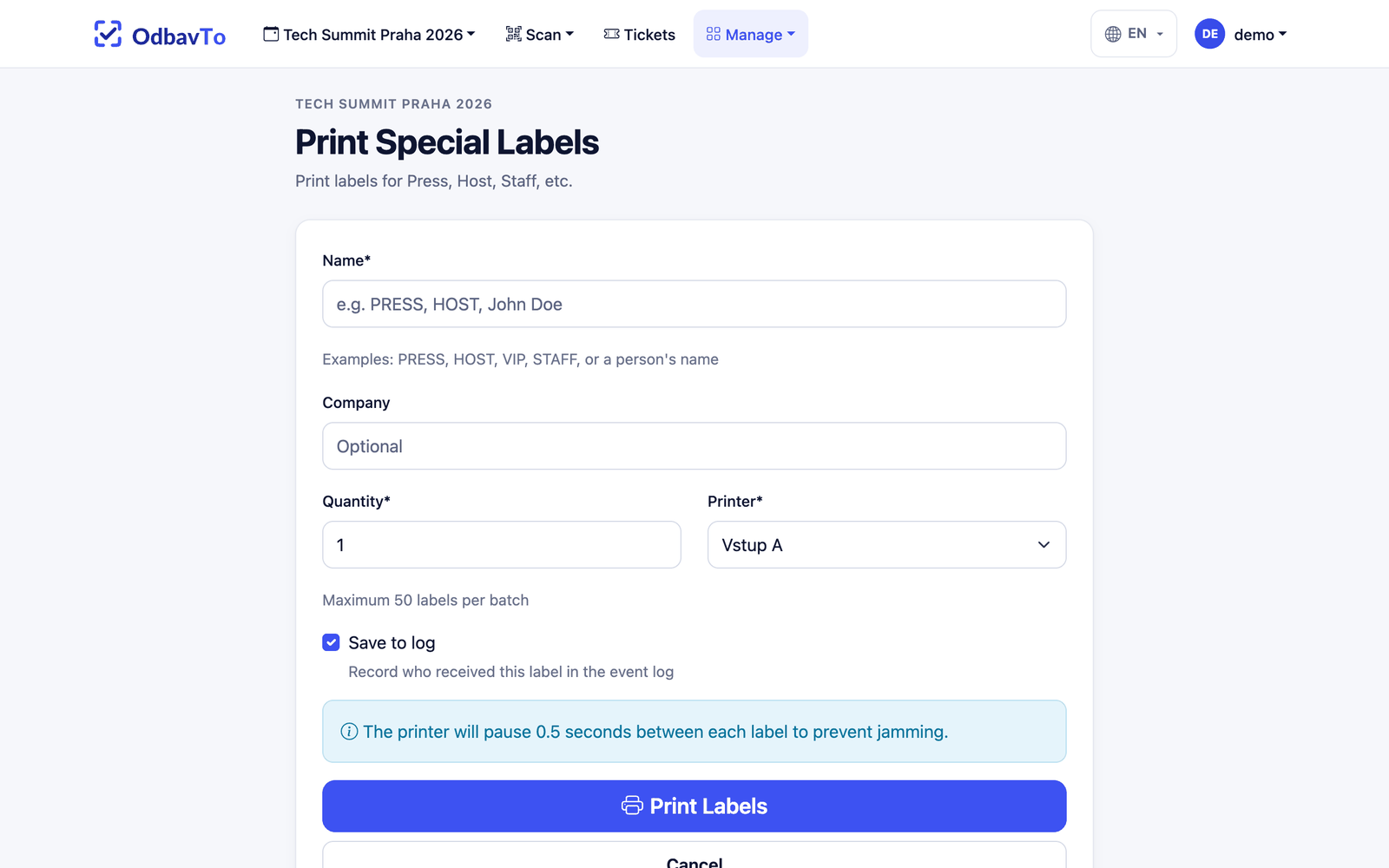
Manage → Special Labels prints badges without a ticket: PRESS, HOST, VIP, STAFF or a name on the spot.
- Fill in the name, optionally a company, quantity (1–50) and the printer.
- Save to log (on by default) records the print in the event log.
Bulk print
Manage → Bulk Print prints badges for several tickets at once without checking them in. Useful for small events where you want badges ready in advance.
- Filter tickets (all / valid / not printed yet) or search by name, company or QR code.
- Tick the ones you want, or use Select All.
- Choose the printer and start printing.
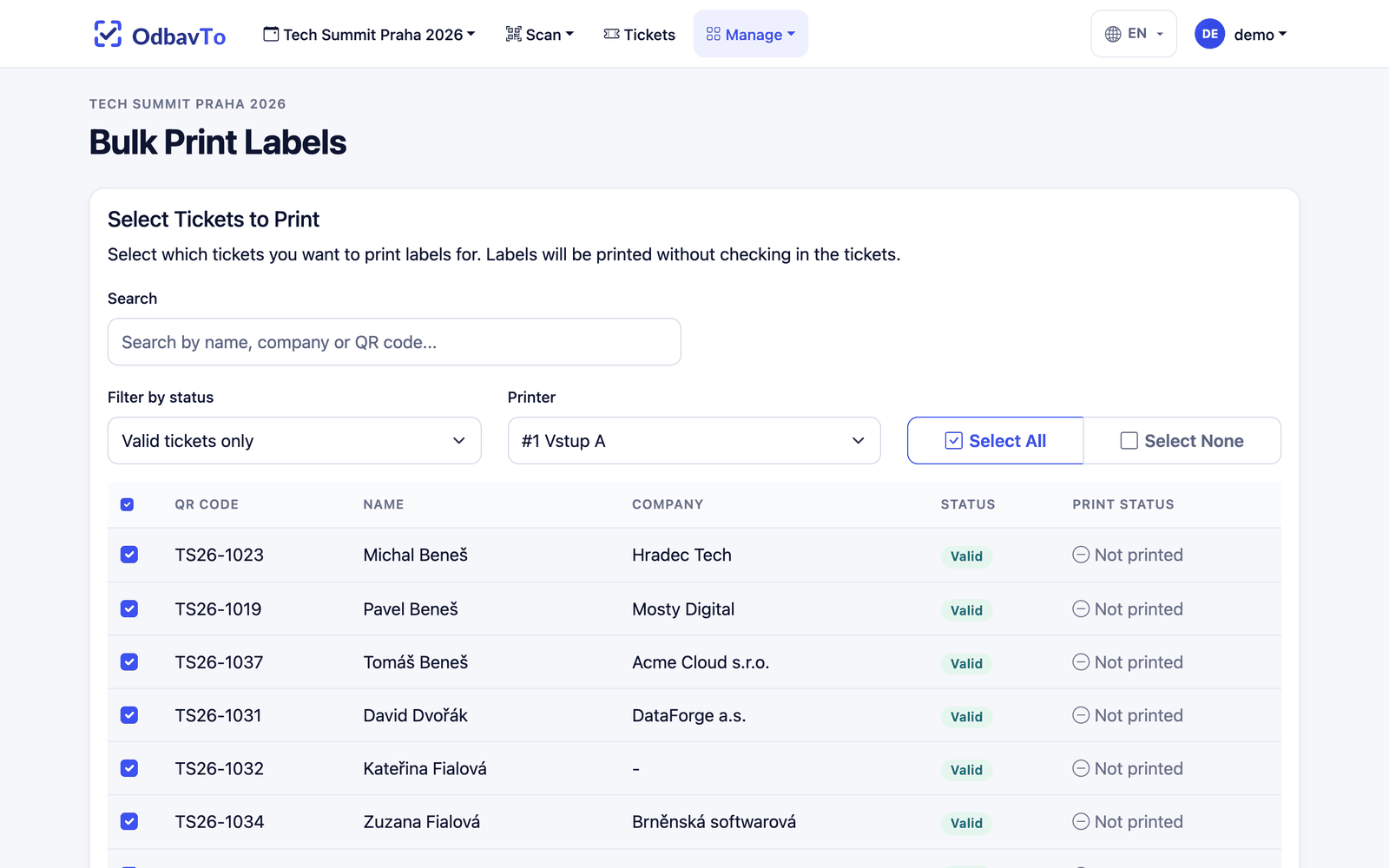
Afterwards you see a summary with the number of printed labels. Failed prints can be retried. The app remembers what has been printed, so you can easily filter the tickets not printed yet.