Tickets
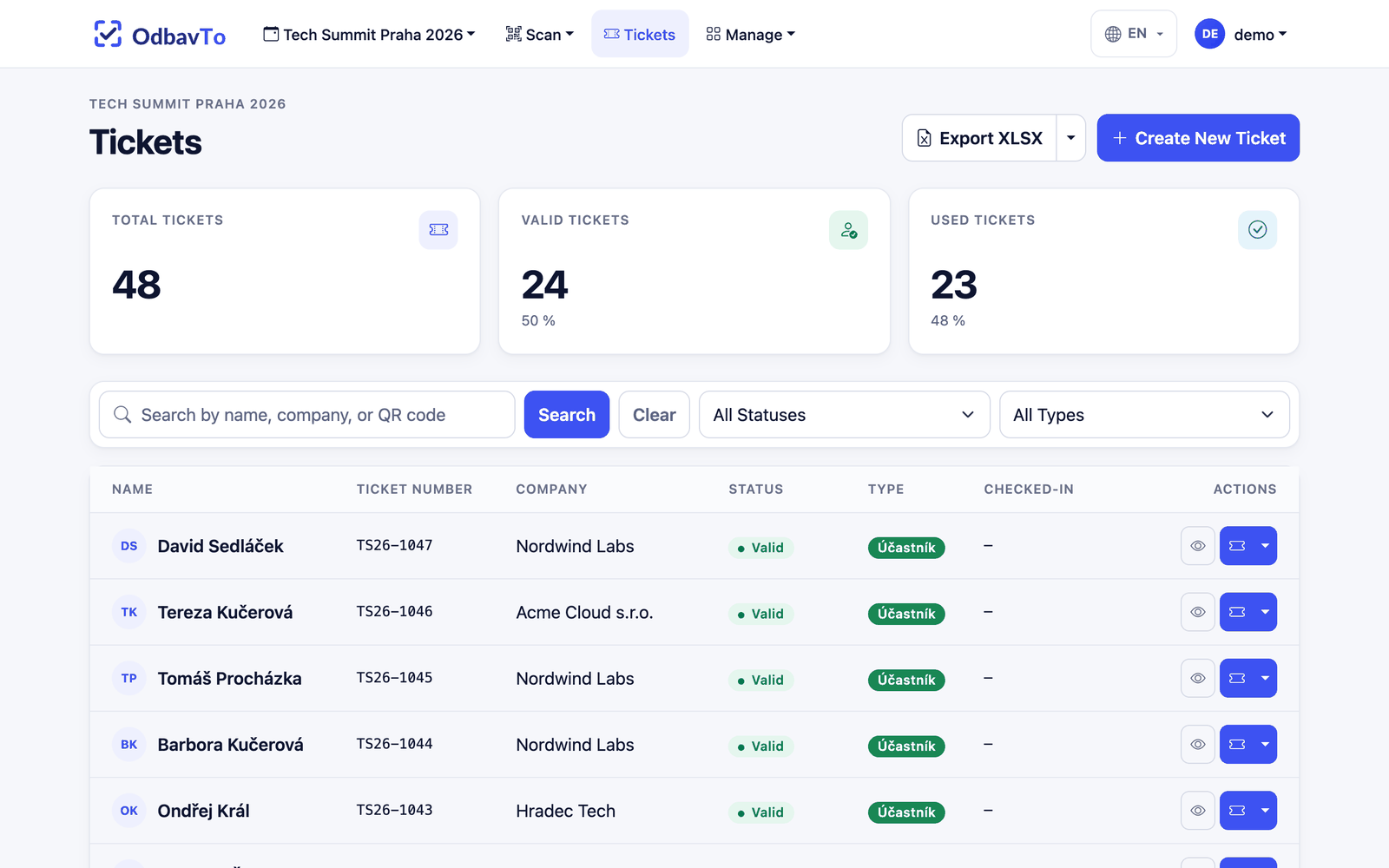
Open the event's ticket list from the Tickets menu. At the top you see a summary (total / valid / used), below it a table with search and filters by status and type.
Ticket status
| Status | Meaning |
|---|---|
| Valid | The ticket has not been checked in yet. |
| Used | The attendee has checked in. Scanning again reports "already used". |
| Cancelled | The ticket cannot be checked in. |
When you set a ticket to Used manually, the check-in time is recorded just like after a scan. Setting it back to Valid removes the check-in record.
Creating and editing manually
- In the list, click Create New Ticket.
- Fill in the first name (required), last name, company, email, QR code and ticket type.
- Optionally tick Invite to Eventee (see below).
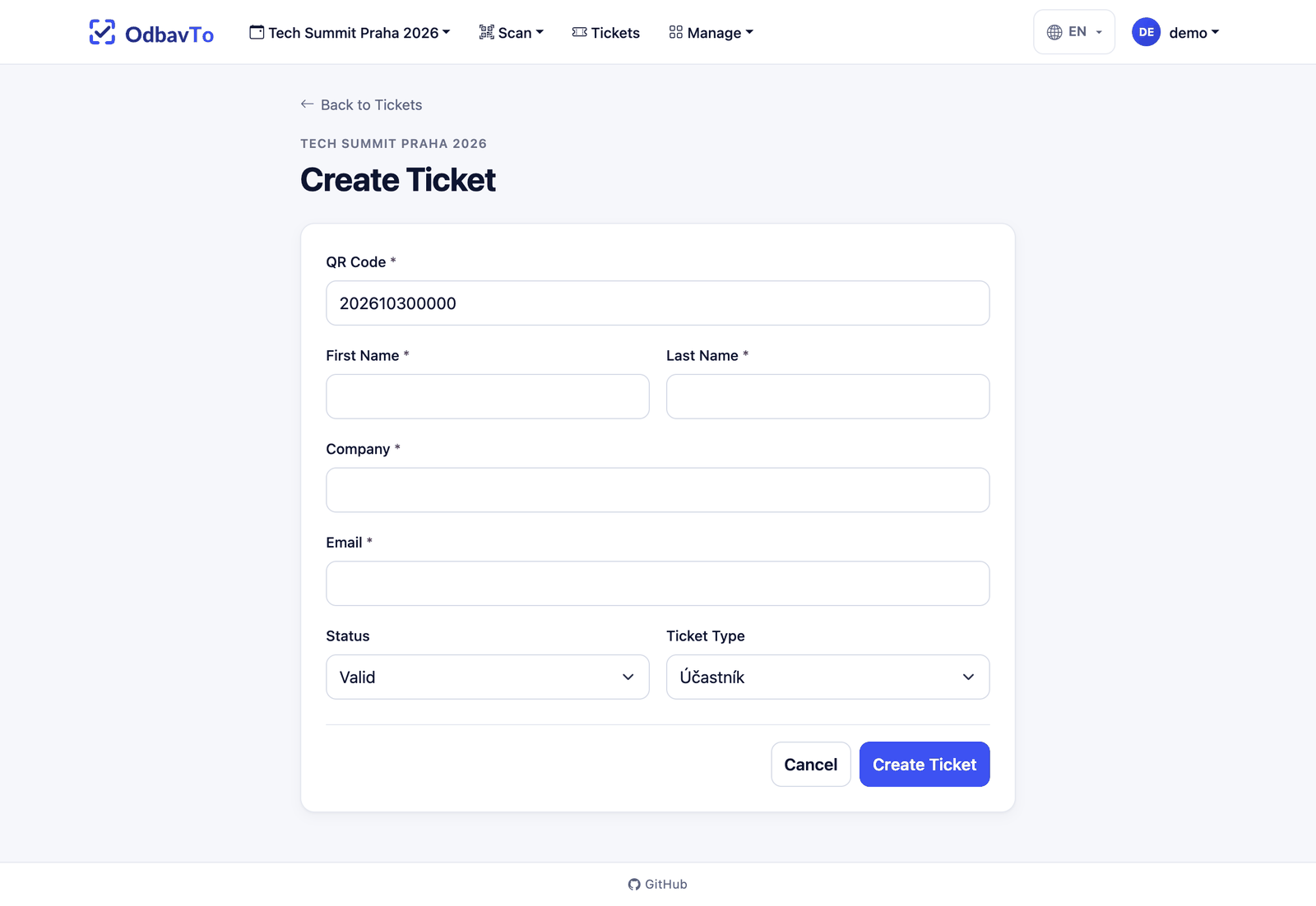
Which fields are required is set per event in Settings → Event → Required ticket fields.
QR codes are unique within an event
Two tickets of one event cannot share a QR code. The same code may repeat in another event.
Ticket types
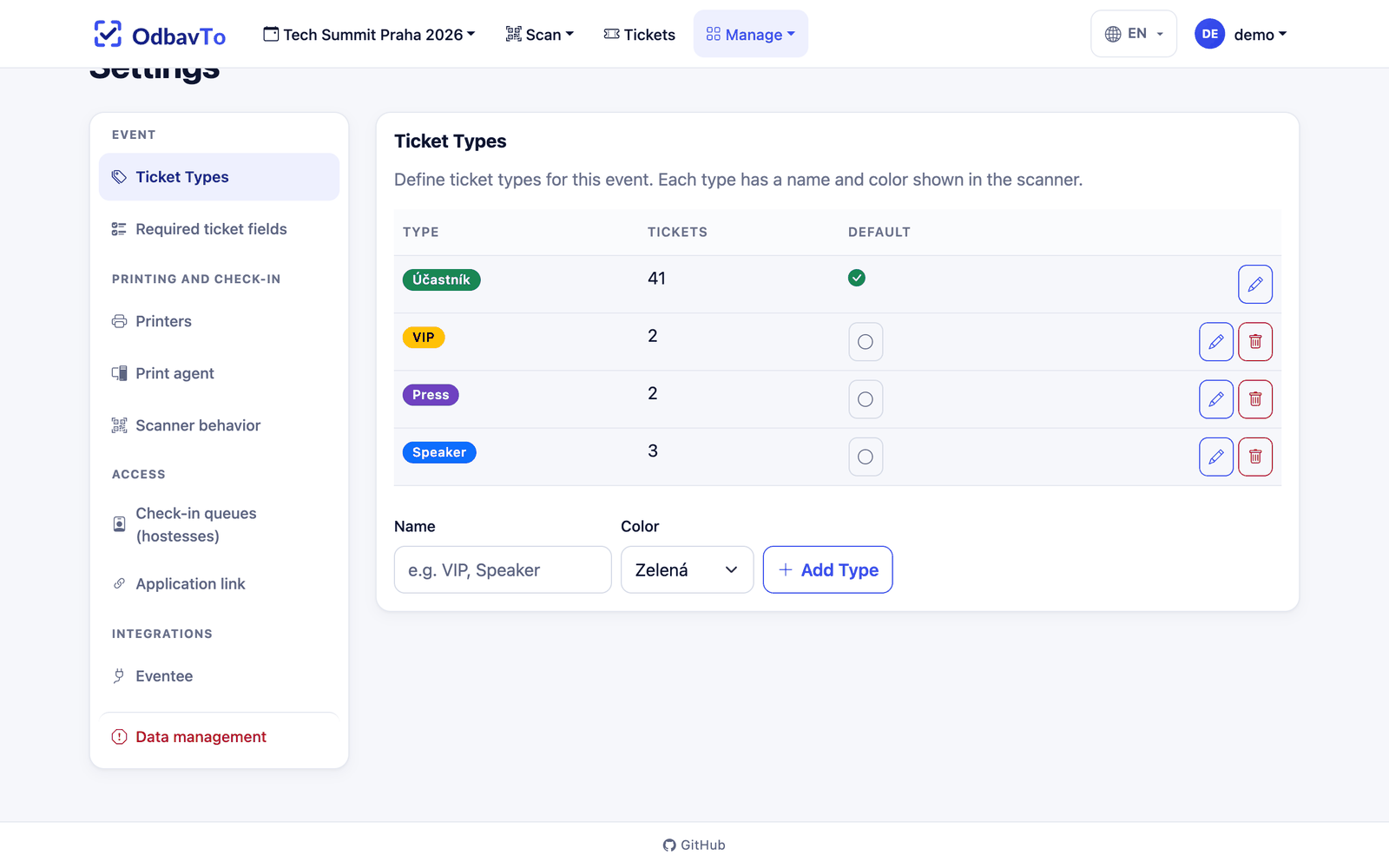
Types (e.g. Attendee, VIP, Press, Speaker) are defined in Settings → Event → Ticket Types. Each type has a color shown in the list and in the scan result, so hostesses immediately see they have a VIP in front of them. Types can also restrict check-in queues and appear as a field on the badge in the label editor.
Export
The Export CSV and Export XLSX buttons download all tickets of the event including status and check-in time (Europe/Prague time zone). Useful for billing or reporting to the organizer.
Eventee
OdbavTo can invite an attendee to the Eventee app when a ticket is created or edited.
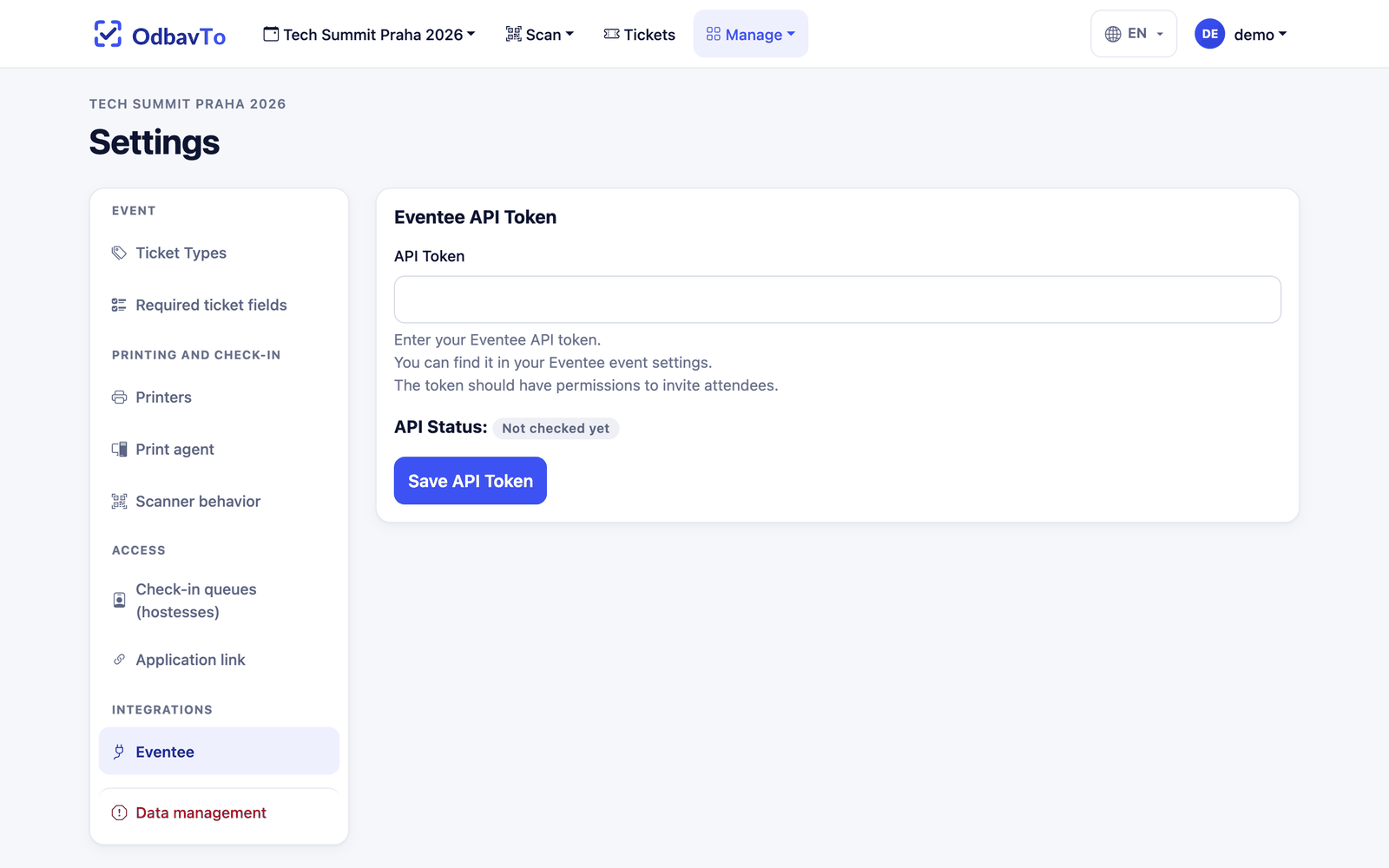
- In Settings → Integrations, enter the Eventee API token (you find it in the event settings in Eventee). After saving, the connection is checked automatically and the result is shown with the time of the check.
- On a ticket with an email address, tick Invite to Eventee.
- A successfully invited ticket gets the Invited to Eventee flag and is not invited again.
The token is stored per event.