Getting started
This page takes you from the first login to the first printed badge.
1. Log in
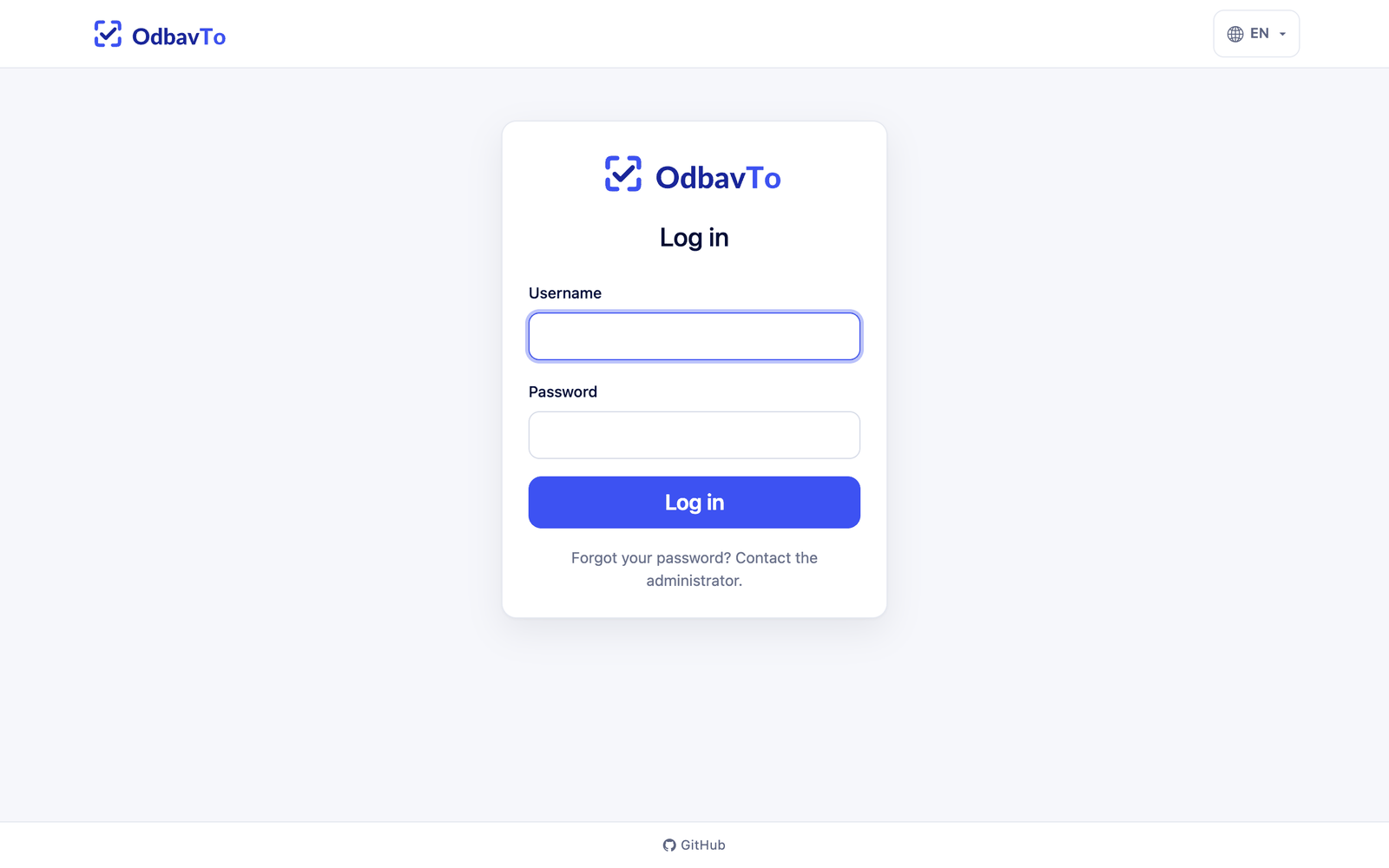
Open the address where OdbavTo runs (e.g. https://odbavto.example.com) and log in with your username and password. Your account is created by the administrator (see Users).
Local installation
When installed on your own PC (without Docker), an account odbavto / odbavto is created automatically on an empty database. Change the password after the first login.
Switch the interface language with the globe icon in the top bar.
2. Create an event
- On the home page, click Create Event.
- Fill in the name, date and optionally a description.
- Save. The event appears as a card on the home page; click the card to open it.
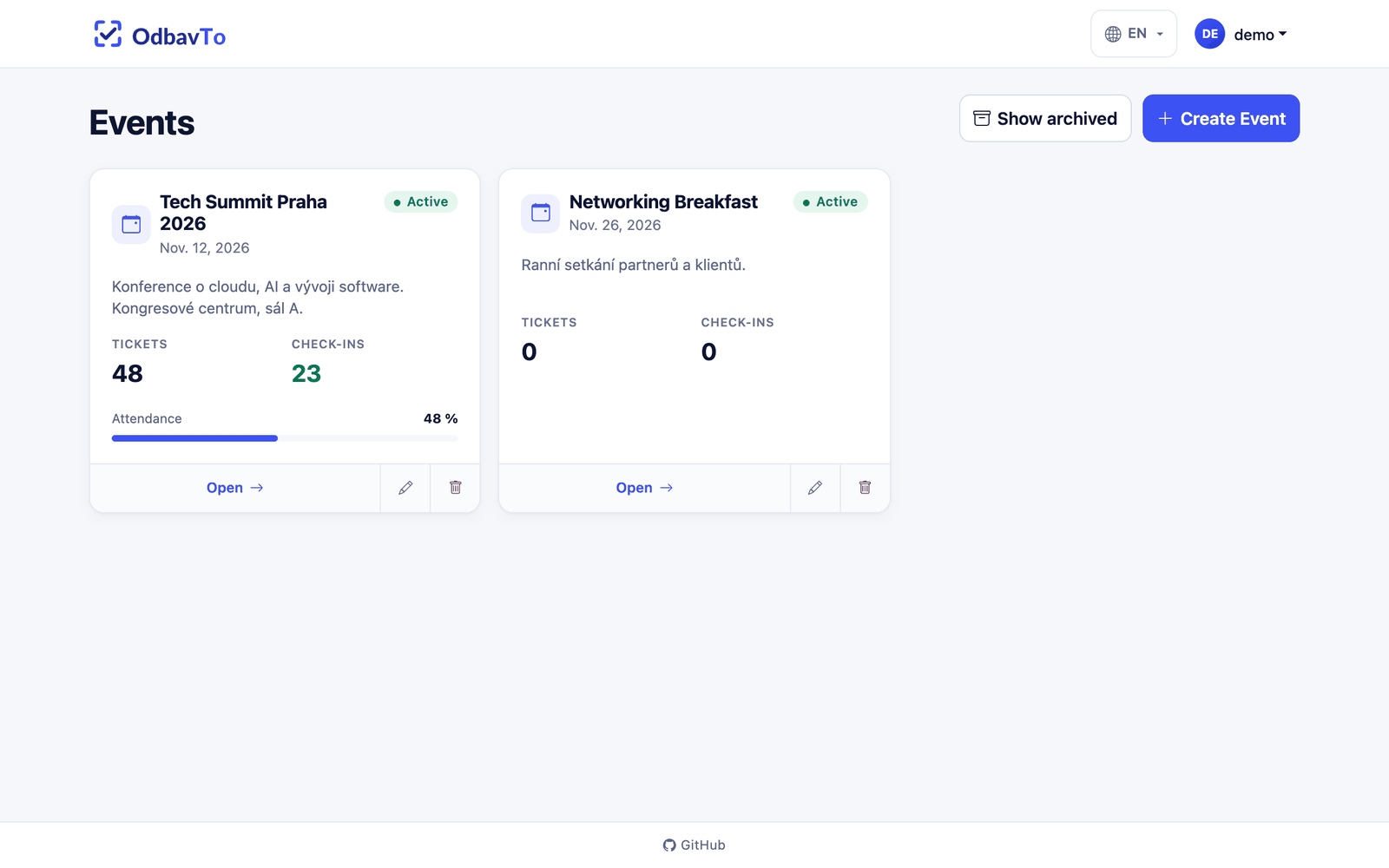
Each user sees only their own events. Tickets, printers, settings and the log always belong to a specific event.
3. Add tickets
There are three ways to get tickets into an event:
- Import CSV/XLSX from your ticketing system. See Importing tickets.
- Create manually in the ticket list. See Tickets.
- Without a ticket you can only print special labels.
4. Add a printer
In the event, open Manage → Settings → Printing and check-in → Printers and click Add printer. The most common choices:
| Situation | Print backend |
|---|---|
| Laptop at the entrance with a USB printer | WebUSB |
| Network printer (e.g. Brother QL-820NWB) | Network (TCP/IP) |
| Scanning on a phone, printer at another PC | Agent |
See Printing badges for details.
5. Check-in
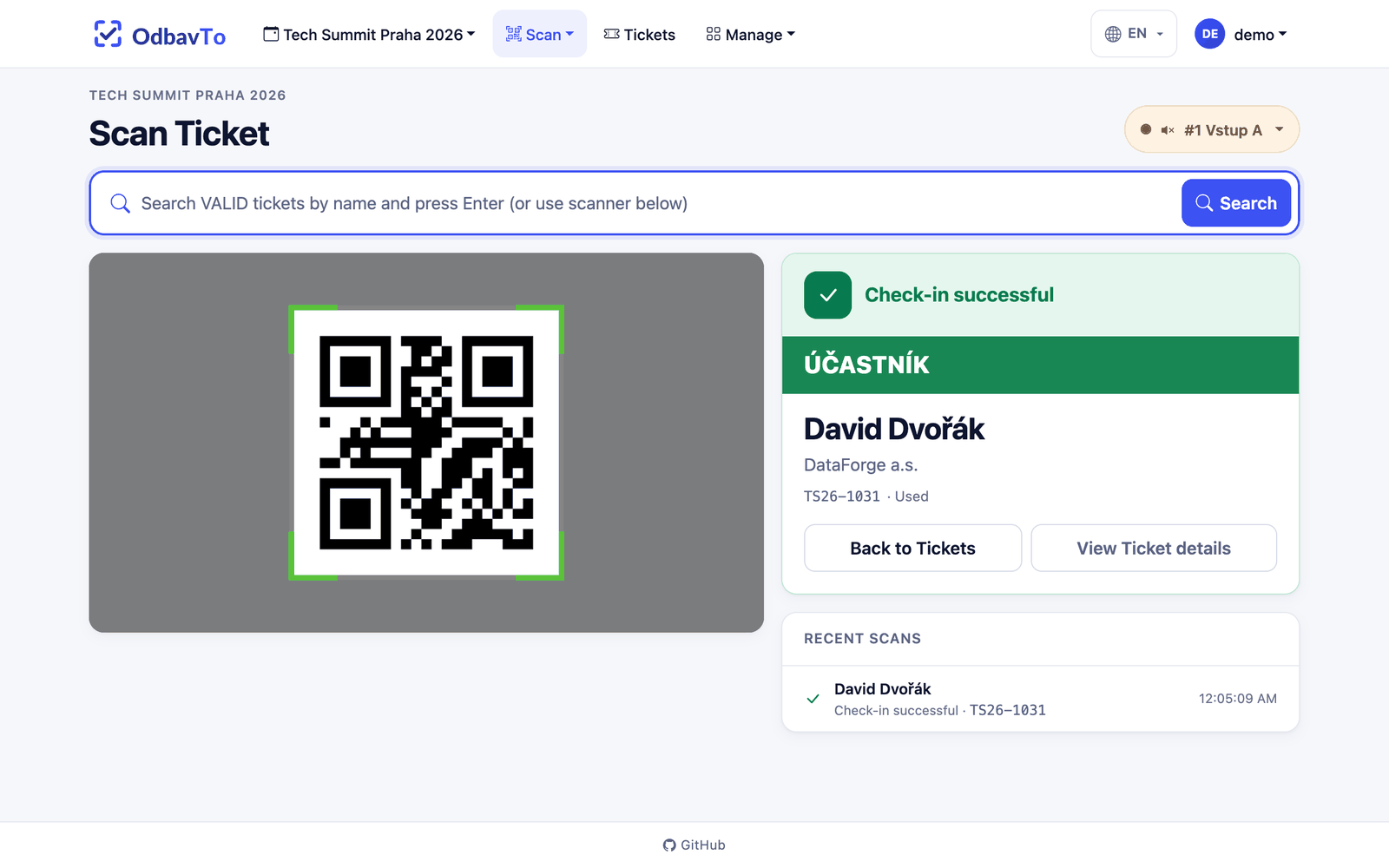
In the event menu, click Scan. Allow the browser to use the camera and scan a ticket's QR code. A valid ticket is marked as used and the badge is printed.
The camera requires HTTPS
Browsers allow the camera (and WebUSB) only on a secure https:// address or on localhost. If the camera does not work, ask your administrator whether the app runs over HTTPS.
What next
- Design your own badge in the label editor.
- Invite hostesses via check-in queues.
- Start the kiosk for self-service check-in.